BookingBuilder uses an Extension to open and interact with web pages in Microsoft Edge. Sometimes security settings or programs will block it, at least at first. You might find that the Web button on the availability window does nothing, or that blank web pages open. This is how to fix it:
Configuration
- Right click the BB icon down by your clock and choose Configuration. If you don't see the icon, click the up arrow to the left of the icons (it might be hiding up there).
- Choose Configuration. You will be on the Diagnostics tab.

- Click the Open Browser Tool button.

- You will see Chrome and Edge listed. If there is a plus button next to one, it might mean the extension isn't installed. Click the Plus button.
.
- Click the globe button to test it. If it opens bookingbuilder.com, it is working. If not...
Add the Extension
- In Edge, click the 3 dot menu on the upper right.
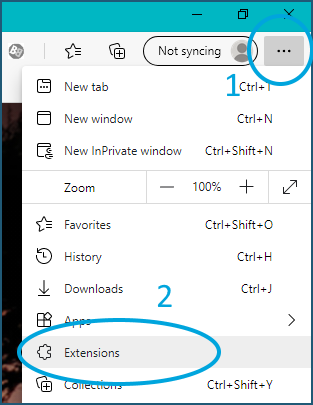
- You will see a list of installed extensions. If you see BookingBuilder, you can skip ahead to Turn it Off and On Again below.
- If you don't see BookingBuilder, go to this location to add it.
https://chrome.google.com/webstore/detail/bookingbuilder-browser-ex/febhjlaglgfcfajikodmdaclfmlgdmnh
If Edge isn't your default browser, you may need to copy that address and paste it into the address bar in Edge (at the top, just under the gray part).
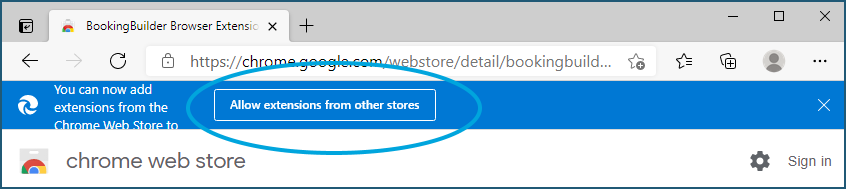
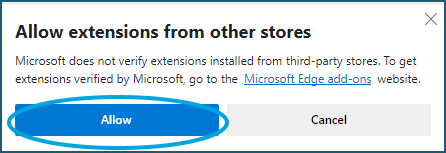
- You may have to allow extensions from other stores. Click that, then click Allow.
- Click Get.
- Click Add Extension.
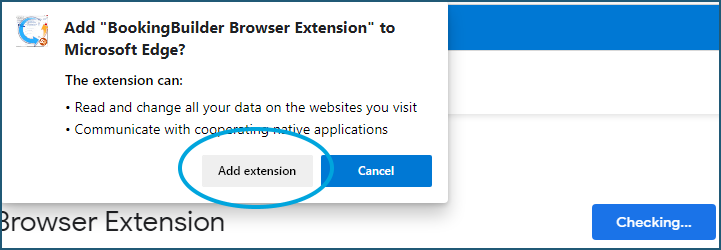
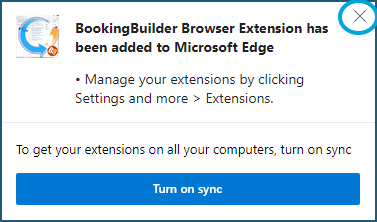
- Close the popup that says it has been added.
- Test it using the Browser Tool (or do an availability and use the Web button).
Turn it Off and On Again
- There is a switch- if it is white with the dot on the left, it is off. Click it to turn it on and it will turn blue.
If it is already blue, click it twice to turn it off and then on again.
- Test it using the Browser Tool (or do an availability and use the Web button).
Re-add the extension
If turning it on and off didn't help, we can try removing and re-adding it.
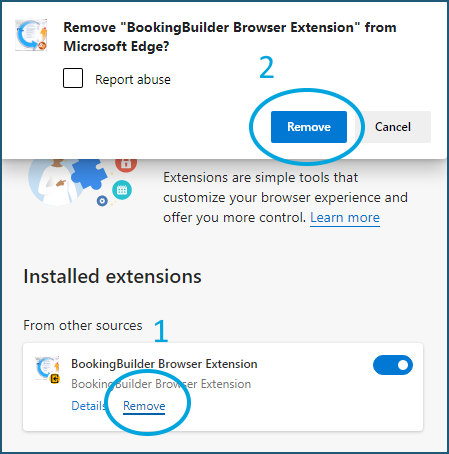
- Click Remove.
- Click the Remove button.
- Go to this location to re-add it: https://chrome.google.com/webstore/detail/bookingbuilder-browser-ex/ffhppljceolofjlminnljjloblcokong
- Click Get.
- Click Add Extension.
- Close the popup that says it has been added.
- Test it using the Browser Tool (or do an availability and use the Web button).
----------------
Register the extension
- Close Edge
- Right click the BB icon and choose Exit
- Open Task Manager (right click on a blank part of your taskbar at the bottom). You're looking for LMGoogleChromehost, and there may be more than one. Depending on your version of Windows, you might be able to search for it at the top. If not, scroll down the list. Click the arrow to the left of the Chrome and Edge icons (it might be hiding under there or by itself). When you one, right click it and choose End Task. If you don't find any, that's fine.
- Open a CMD window- it is quickest to search for CMD in Windows. Click the result that is a black box

- Adjust this text to match the Windows username- here it is set for a user who's Windows logon is Alice. If yours is BobSmith, change it to say BobSmith:
"C:\Users\Alice\AppData\Local\BookingBuilder\bin\LMGoogleChromeHost.exe" /installedge
- Paste that text into the CMD window (if it doesn't go to the next line, hit the Enter key).

Comments
0 comments
Please sign in to leave a comment.